Design packages · Dash Learning Paths
Turn a course list into a journey
Dash shows each learner’s completed and pending courses as a path instead of a list. We designed the paths for it: 19 packages, free to download, ready to upload.
- 19 designs, all free
- Path or zone layouts
- SVG for desktop, tablet, mobile
- Requires Dash Premium
Same courses. A different story.
What learners see on their dashboard
The default design
Already a big step up from Moodle’s course list: clear, visual and good-looking from day one.
With a learning path design
Learning becomes a real journey: where you are, what you have done, what comes next.
Many designs, one widget
Dash learning paths in action
Explainer video
19 packages · all free
Explore our designs
From a surfer on a wave to a metro map: pick the story that fits your learners. Every package contains one SVG per viewport.
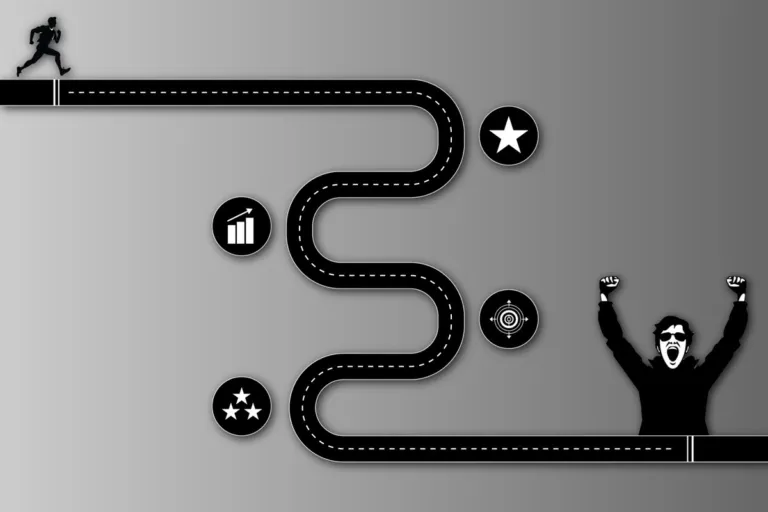
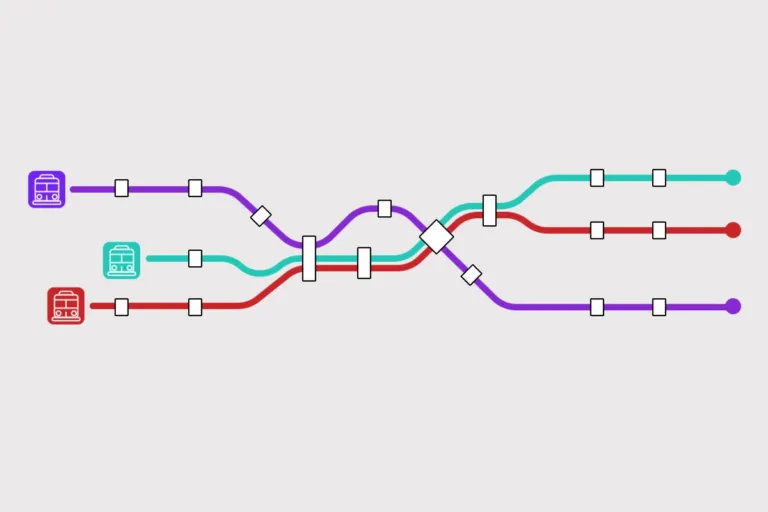
Courses along a path
Courses are placed from start to finish






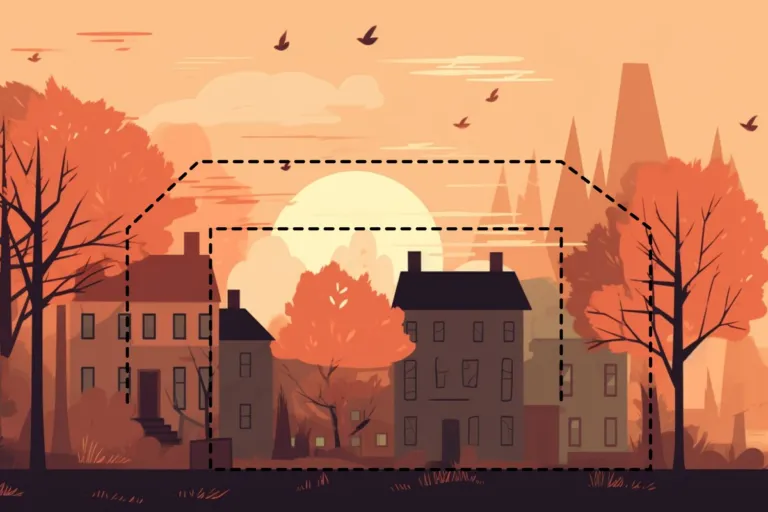




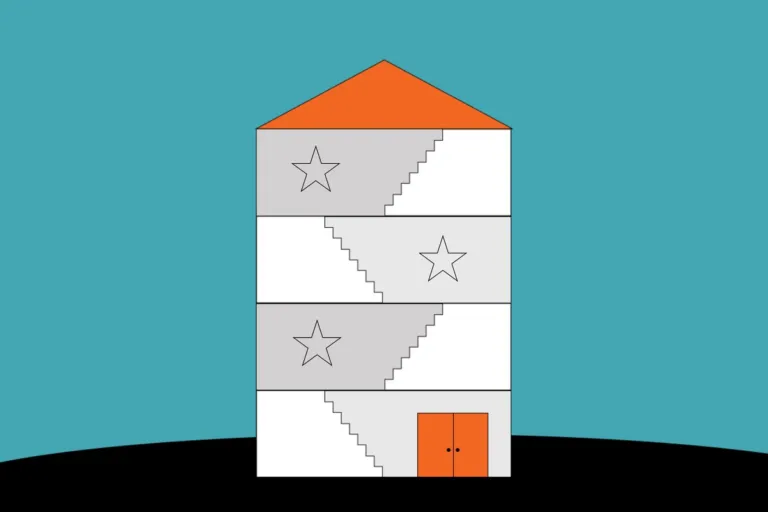
Courses in zones
Courses sit within defined areas





Ready in minutes
How to use the packages
-
Install Dash Premium
Learning paths are a widget of Dash Premium.
-
Download a package
Every package is free and contains an SVG file for desktop, tablet and mobile.
-
Upload the SVGs
Site administration › Local plugins › Dash › Widget: Learning Path. Assign each file to its viewport.
-
Configure your Dash block
Select the design, choose path or zones, then set the info area, course visuals and colors.
Design guide
Create your own learning path
Your path can show your campus, your product or your company’s story. You need Figma, Illustrator or any graphics program that exports SVG.
Anatomy of a learning path file
Three layers, one rule
Course icons
Placed by Dash along the path or in zones. Not part of your file.
The learning path
The only vector path in your SVG. Dash reads it to know where courses go.
Background
A pixel graphic, embedded in the SVG or set in the Dash settings.
Canvas sizes to start with
- Desktop1200 × 800 px
- Tablet834 × 1000 px
- Mobile400 × 1000 px
Guide values. The right size depends on your design and how many courses the path has to hold.
What makes a path work
One uninterrupted route
Set the direction first; courses run from start to finish. Keep a clear start and end, and enough space to the edges. Closed shapes like circles don’t work.
Identical in every viewport
Keep path length and styling the same in all three files. Otherwise the mobile settings apply everywhere, or courses get squashed on small screens.
Contrast carries the path
Learners should follow it at a glance. Keep busy details away from where course icons will sit.
Zones big enough to tap
Use clear shapes and consistent spacing. Reserve zones for key courses if you mix manual and automatic placement.
In the Dash settings
Icons and shapes per course type
In the Dash General settings you choose the icons and shapes used for each course type. The documentation shows every option step by step.
Before you export
Do
- One simple path, redrawn rather than edited
- Rounded path ends
- Vector backgrounds rasterized
- Illustrator: SVG with presentation attributes
- Tested on desktop, tablet and mobile
Avoid
- Adding or deleting anchor points afterwards
- Angular or perfectly straight lines in Illustrator
- Corner compensation on dashed paths
- More than one vector path in the file