Design packages · Designer
Activities as tiles worth clicking
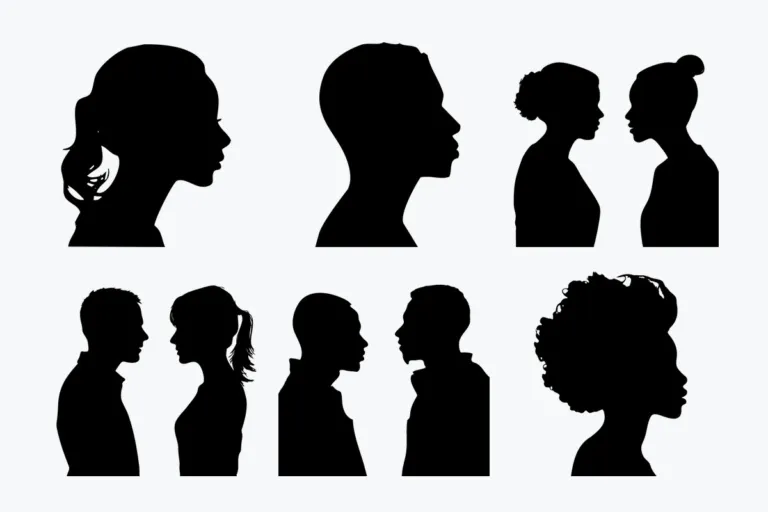
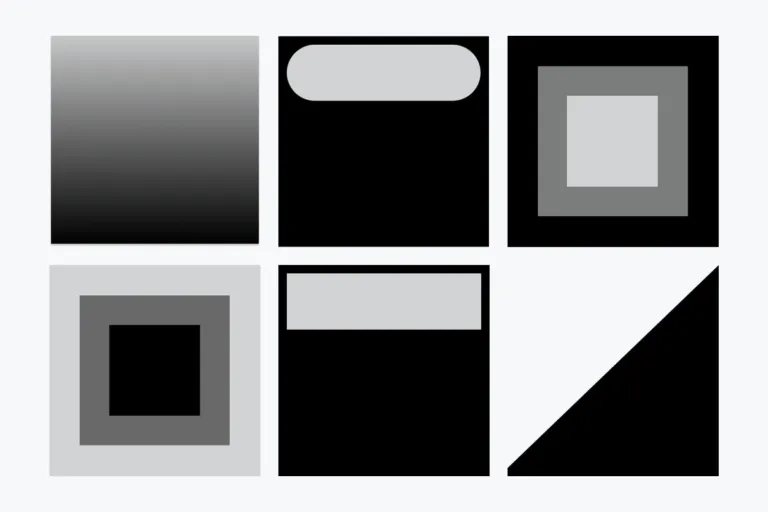
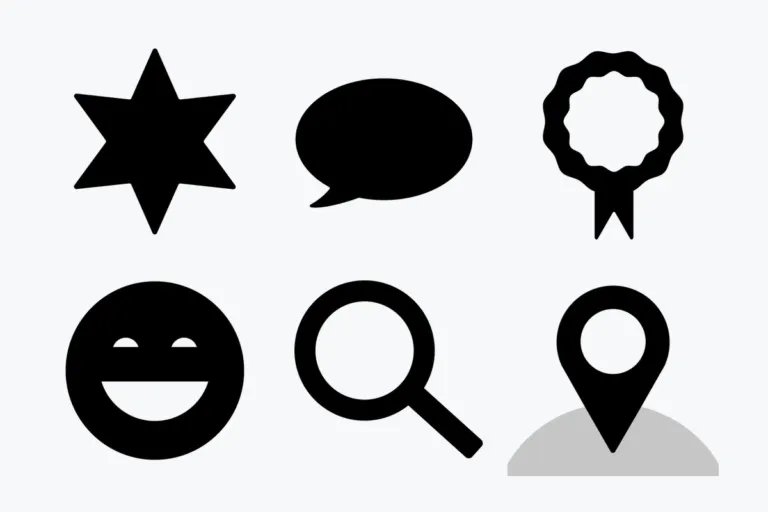
Square images for Designer’s Flow layout, with a second image once an activity is completed. Masks shape any image into numbers, symbols or silhouettes.
- 1 flow design + 5 mask sets
- All free
- 500 × 500 px squares
- Requires Designer Pro
6 packages · all free
Explore our designs
Flow designs
Images for available and completed activities, plus a course image
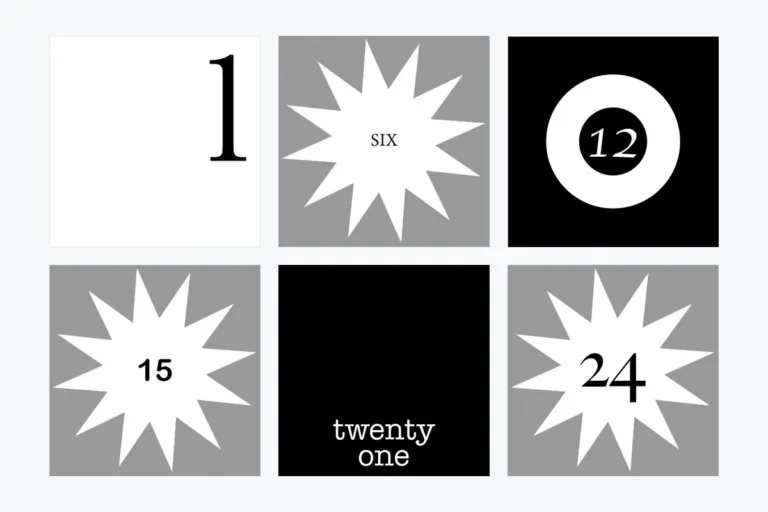
Masks
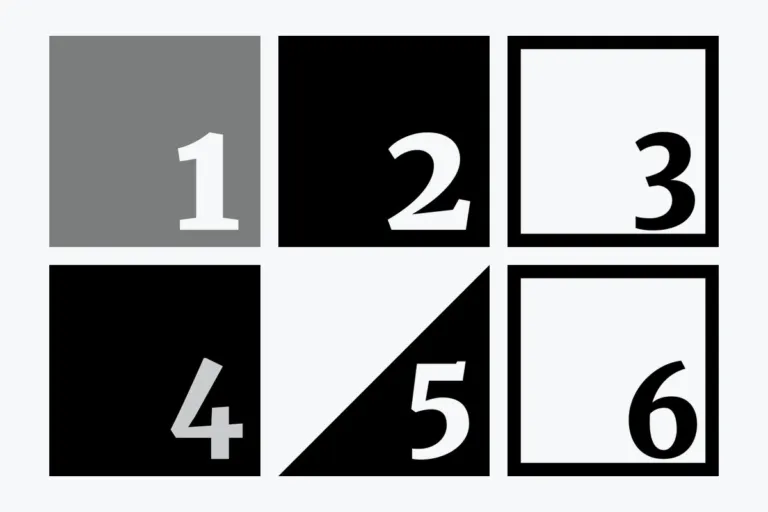
Black or (semi-)transparent PNGs to combine with any image

Ready in minutes
How to use the packages
-
Install Designer Pro
Set the course format to “Designer format” and the course type to Flow.
-
Download a package
Flow designs and masks are free.
-
Add the images
In each activity’s Design tab, drag and drop the background image, plus a completion image if you track completion. Admins upload masks once in the Designer settings.
-
Style the tiles
Choose a mask from the dropdown, add a gradient or set the text color.
Settings that work with our packages
- Background size
- Cover
- Background position
- Initial. Our images are square, so they fit as they are.
- Repeat
- Off
- Activity information
- Keep it minimal. Show a title only if it stays readable; info on hover is an alternative.
- Mask names
- File names become mask names for course creators. Rename before uploading.
Design guide
Create your own tiles and masks
Activity images: square, 500 × 500 px, JPG, PNG or GIF. Masks: the same size, as PNG for transparency.
How masks work
Image + mask = masked image
Gradient (optional)
Colors the areas the mask covers. Without it they appear white.
Mask
Black areas show the image, transparent areas hide it, semi-transparent areas let it shine through.
Background image
Your square image. The same mask also applies to the completion image.
What makes a flow course work
Fewer tiles, more impact
Flow is ideal for small courses. Too many tiles feel overwhelming.
Keep info areas clean
Titles, buttons, visit counts or completion badges cover parts of your image. Keep those areas calm; gradients help readability.
Test one activity first
Completion images double the number of files, and Designer adds a status color stripe. Check the concept before producing everything.
Sections look different
If sections and activities share a page, give section tiles their own style so learners see where a section starts.