Design packages · Avatar
Characters that grow with your learners
Avatar sets with artwork, names, stories and progression states that change as learners advance. Import one ZIP per avatar and you’re ready.
- 4 avatar sets
- Free and premium
- One ZIP per avatar
- Requires Avatar
4 packages · free and premium
Explore our designs
Each set includes all images and descriptions. Everything stays editable after import.

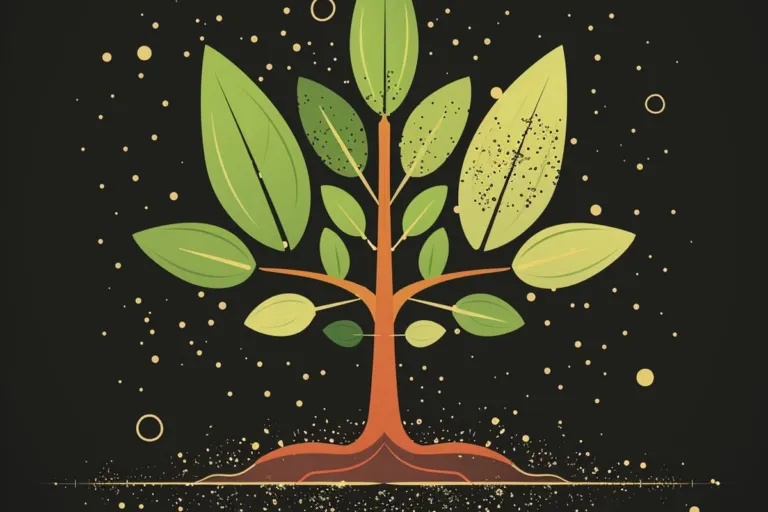
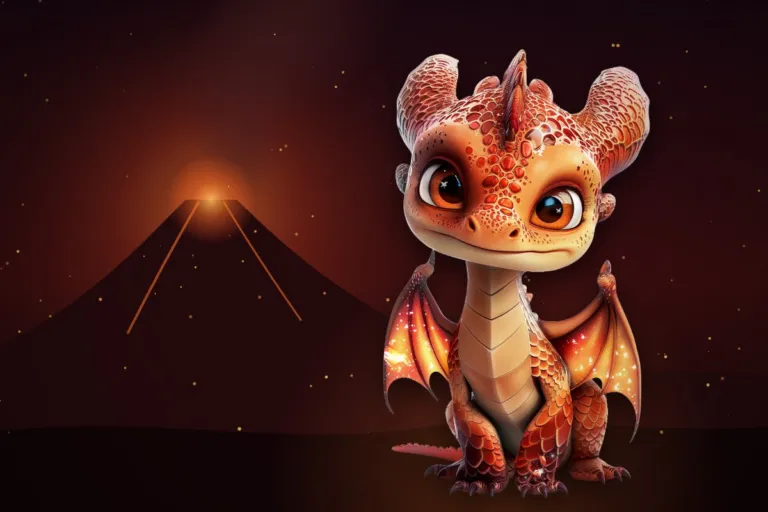
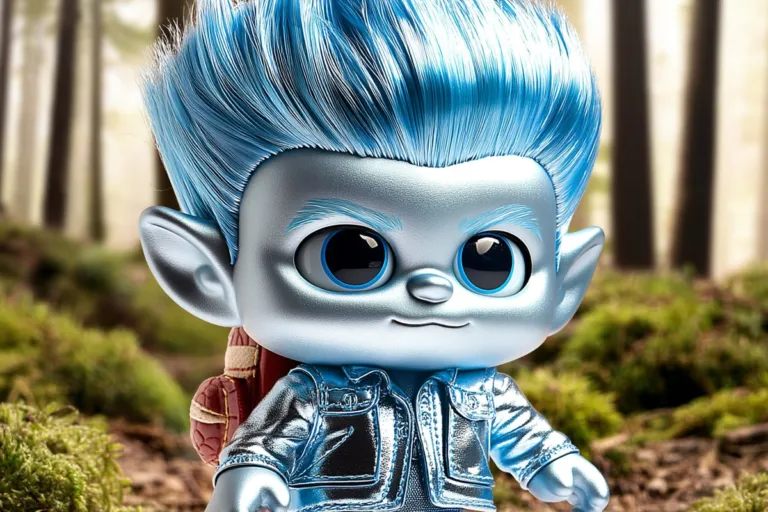
Ready in minutes
How to use the packages
-
Install Avatar
Add the Avatar plugin to your Moodle site.
-
Download a package
Pick a free package or one of our premium designs.
-
Import the avatars
In the site administration, drag and drop the ZIP files. One ZIP per avatar.
-
Add an Avatar activity
All available avatars appear in the activity. With Avatar Pro, tags control which ones learners see.
After import, everything is yours
- Edit every field
- Name, description, secret information and images.
- Progression states
- Change the number of states. Each one uses its own image.
- Gallery preview
- Adjust the preview image and the additional media shown before learners choose.
- Tag images
- Upload images for tags in the general settings. They appear as badges in the avatar profile.
Design guide
Create your own avatars
Learners meet an avatar in four stages. Design each one for the moment it appears.
What learners see, in order
Gallery
Preview image and additional media, shown before selection. Tease, but don’t reveal the secrets.
Thumbnail
Shown once an avatar is chosen, and in the popover with Avatar Pro. A portrait or headshot stays recognizable when small.
Avatar images
One per progression level. Full-body designs with transparent backgrounds work especially well.
Animation states
Optional: the avatar in action, in its world or with friends. GIFs are possible.
File sizes
- Avatar image800 × 1000 px
- Thumbnail500 × 500 px
- Additional media1500 × 800 px
JPG for large images, PNG for transparency, GIF for animation.
What makes an avatar work
Decide the levels first
The number of levels can differ per avatar. What matters is a clear visual development from one level to the next.
Transparent stands out
In the gallery, avatars sit side by side. Transparent backgrounds keep detailed designs clean; circular shapes give “My avatars” a uniform look.